Mia books the job while you work
Mia by 2Line.AI books appointments during the call, inside the business hours you set, and texts the caller a confirmation. Reminders go out before the visit, and customers reply C to confirm or R to reschedule.
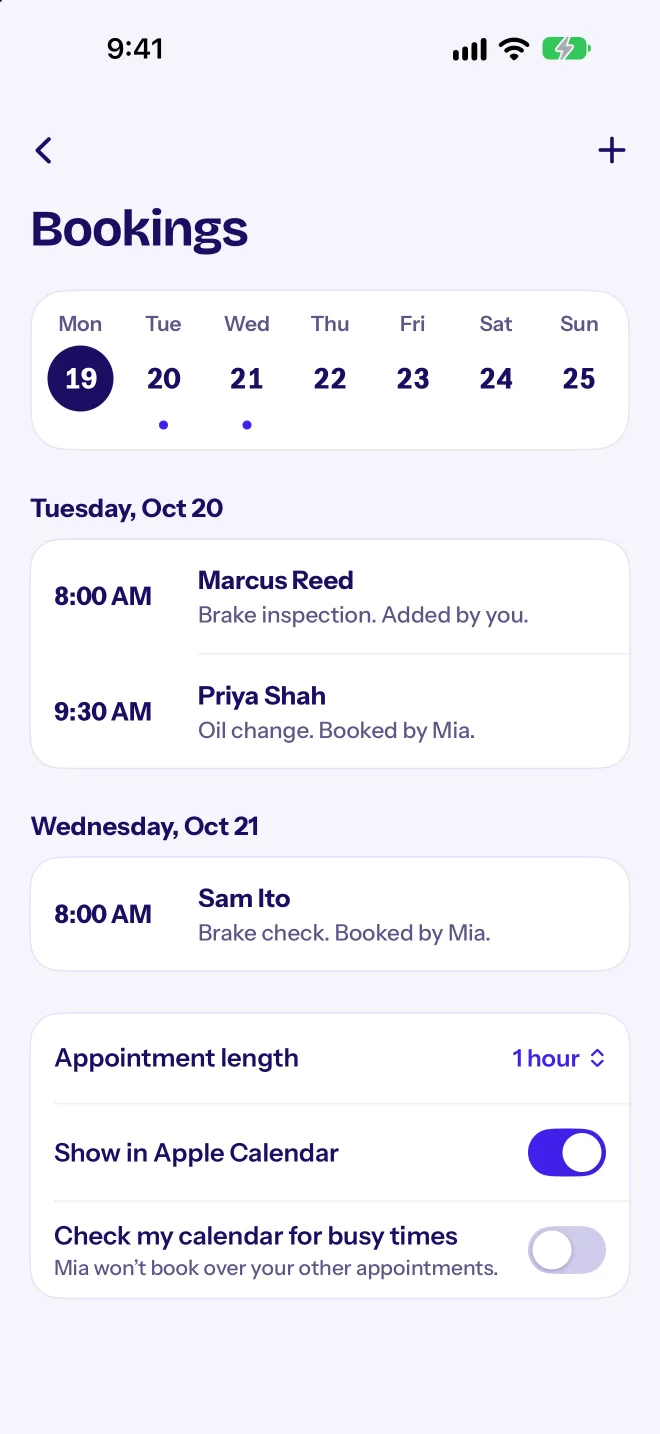
What you get
Booking by phone usually means calling back, finding a time, and texting to confirm. Each step is a chance for the customer to book someone else instead.
With 2Line.AI, Mia books the slot on the first call, inside your hours and around your busy times. The customer gets a confirmation and a reminder, and after the job one tap sends a review request.
Only open slots
Mia offers times inside your hours and appointment length. One hour by default, changeable.
Job address for on-site work
For on-site jobs Mia asks for the address and puts it on the booking.
Reminders that get replies
Customers reply C to confirm or R to reschedule. You see the answer on the booking.
Job done, then a review
Mark the job done and 2Line can text a review request to the customer, with 5 seconds to undo.
How booking works
- 1Set your hours and closed datesUntil you set them, hours are Monday to Friday, 9 to 5. Add holidays as closed dates.
- 2Set the appointment lengthOne hour by default. Change it in Bookings → Appointment length to match a typical job.
- 3Let Mia see your busy timesOn iPhone, turn on “Check my calendar for busy times” and pick which calendars count. Only the times are copied, never what the event is.
- 4Mia books on the callShe offers open times, asks for the job address for on-site work, and books it. The caller gets a text with the time.
- 5Reminders and reviewsReminders go out the day before, the morning of, or both. After you tap Job done, a review request can follow.
The texts your customer gets
A made-up booking. These are the app's standard messages; you can change the wording.
Who booking helps most
Salons and Barbers
Clients book cuts and color with Mia inside your chair hours, and reminders cut down on no-shows.
2Line.AI for salons and barbersPet Groomers
Mia books the groom and the morning-of reminder goes out before you open.
2Line.AI for pet groomersPersonal Trainers
Sessions get booked into the hours you train, not the hours you're mid-set with a client.
2Line.AI for personal trainersHouse Cleaners
Mia asks for the address on every on-site job, so it's on the booking when you head out.
2Line.AI for house cleanersSettings you control
| Business hours and closed dates | Mia books only inside them. Monday to Friday, 9 to 5 until you set your own. |
|---|---|
| Appointment length | One hour by default. Every slot Mia offers uses it. |
| Busy calendars (iPhone) | Pick which iPhone calendars count as busy. Only times are copied. |
| Reminders | Day before (5 PM), morning of (8 AM, or 2 hours before if that's earlier), or both. Edit the message. |
| Review requests | Your review link and a delay: right away, 1 hour, 2 hours or next day. |
| Time zone | Set once from your phone, then only you change it. Slots and reminders use it. |
What it costs
Say Mia books 15 appointments in a month on calls of about 3 minutes, each with one reminder, and 10 customers get a review request. That’s 2,600 credits. The cheapest way to cover it is one 4,000-credit pack ($59.99), on top of your plan. Your real use will differ.
| Mia, 15 calls × 3 minutes | 48 × 45 = 2,160 credits |
|---|---|
| AI summaries | 1 × 15 = 15 credits |
| 15 confirmation texts | 8 × 15 = 120 credits |
| 15 reminder texts | 8 × 15 = 120 credits |
| 15 replies (C or R) | 7 × 15 = 105 credits |
| 10 review requests | 8 × 10 = 80 credits |
| Total | 2,600 credits, covered by $59.99 in packs |
Plans are $19.99 a month or $99.99 a year with a 3-day free trial, and start with 100 credits, once. Credits don’t refill each month; packs start at $4.99. See all rates.
Get more out of booking
- Set your hours before you put Mia on duty. Every slot she offers comes from them.
- Match the appointment length to a typical job, with travel time if you work on-site.
- Add holidays as closed dates now, so nobody gets booked on the 4th of July.
- On iPhone, turn on busy calendars so personal plans block out the right times.
- Use “Both” reminders for jobs where the customer has to be home or prepare something.
- Add your review link before you tap Job done, so the request has somewhere to send people.
Ways customers book by phone
| Feature | Mia books on the call | Online booking page | You call back to book |
|---|---|---|---|
| Booked on the first call | Yes | Only if they find and use the page | No, after a callback |
| Asks for the job address | Yes, for on-site work | If the form asks | If you remember |
| Stays inside your hours | Yes | Yes | Yes |
| Reminders customers answer with C or R | Yes | Varies by tool | No |
| Your time per booking | None during the call | None | A callback and a text |
Other options vary by carrier, phone and provider. Check theirs before you decide.
Read next
Meet Mia by 2Line.AI
The AI receptionist inside 2Line.AI: what she does on a call, what she costs and how she learns your business.
Read moreAI Receptionist Scripts: What to Teach Yours
What to teach an AI receptionist: greeting scripts, questions to ask callers, urgent call rules, prices and booking rules, with examples you can copy.
Read the guideHow Contractors Can Stop Losing Jobs to Missed Calls
Practical ways plumbers, electricians, HVAC techs and other trades can answer more calls on the job: text back, AI answering, booking and follow-ups.
Read the guide2Line.AI vs Smith.ai
Compare 2Line.AI and Smith.ai AI receptionists: per-call vs per-minute pricing, booking, and getting a business number included.
CompareGoes well with
AI receptionist
An AI receptionist that answers your calls in your business name, takes details, books appointments and texts you a summary. From $19.99 a month.
Learn moreMissed call text back
Automatic missed-call text back so callers don't ring your competitor. Personalized texts, booking links and follow-ups from your 2Line number.
Learn moreBusiness texting
Send texts and pictures from your 2Line business number. Carrier-registered (A2P 10DLC), quotes, On my way texts and reminders built in.
Learn moreAll features
Everything 2Line.AI does, grouped by answering, numbers, texting, and calls and voicemail.
See allQuestions about booking
Does it sync with my calendar?
What are the default hours?
Can I book appointments myself?
Can customers reschedule by text?
Will Mia book outside my hours?
How do review requests work?
Get your second number today.
Yearly comes with 3 days free. $19.99 a month or $99.99 a year.
Pick your number